
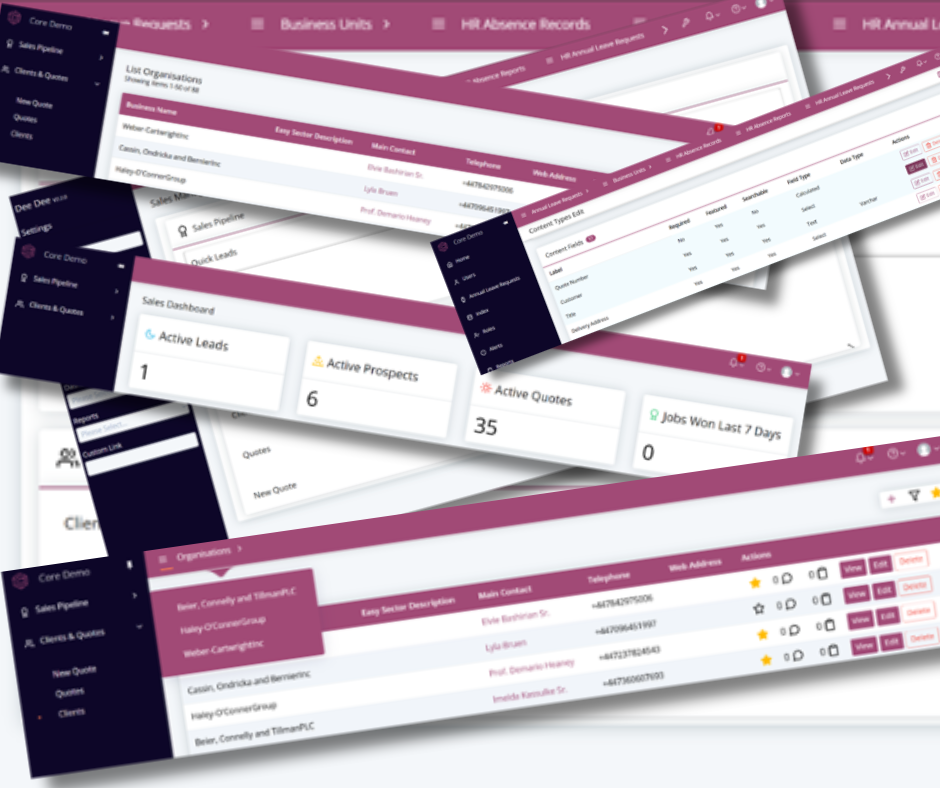
This blog post is all about using the Favourites Bar and Custom Menus in Core to speed up your workflow, by making it quicker and easier to find your favourite things.
What is the Favourites Bar?
The Favourites Bar is the Menu across the top of your Core site. When you first log in this will normally be empty:

Each User can customise this top bar to create quick links to the things they use most often.
Example 1 – Setting Your First Favourite
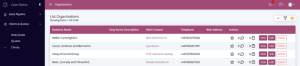
If you go to the List View for any Content Type, you will see a star icon in the top right:

Click it and your chosen item will be shown as a link on the Favourites Bar:
Example 2 – Setting Individual Items as Favourites
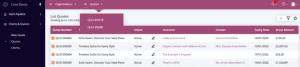
Each item in the List View has an individual option to set it as a Favourite:
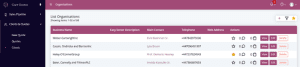
If you click one or more items, they will be added to your Favourites Bar, grouped under the relevant heading:
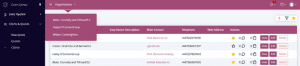
We can do the same for other Content Types and build up our Favourites Bar as required:
Example 3 – Grouping and Sub-Groups
In the example above, we added some individual Quotes to our Favourites Bar. But sometimes it is useful to add another Grouping Level. We can do this by configuring it on the Content Type Edit Screen.
In this example, we need to edit the Quote Content Type and find the Customer field:
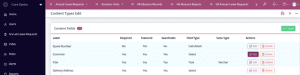
Notice, the Favourites Bar and Side Menu are different on this screenshot. That Is because we need to be logged in as an Admin User to make this change.
When we edit the Customer field, we can set it as the “Favourite Group Field”.
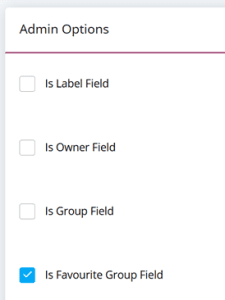
Now, when we add Quotes to our Favourites, they will be grouped by Customer:

How Can I Customise My Main Menu?
So far, we have looked at the Favourites Bar across the top of the screen. But what about the Main Menu on the left?
Introduction to Menus
Menus are a Content Type like any other:
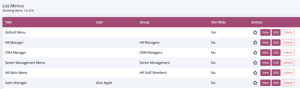
Menus can be assigned in three ways:
- For an Individual User
- For Members of a Group
- Site Wide
So, Core will look first for a specific menu assigned to you, then one assigned for your group and finally a site wide menu.
In the example above, Alice has an Individual Menu, there are various Menus for different Groups and a Default Menu for everyone else.
Creating and Editing a Menu
In this example, we are going to look at the Sales Manager Menu that is assigned to Alice:
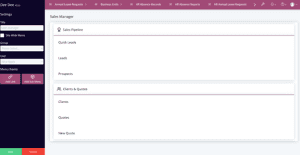
Here, we can see the Title and who the Menu is assigned to can be set on the left-hand side. Menu Items can be a Single Link or Grouped into Sub Menus.
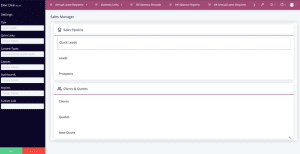
As you click on each item, you will see the Settings for that Item on the left:
Conclusion
Hopefully, you will now be able to find all of your favourite things quickly and easily. We have also got some new features coming soon, to do more Fun Stuff with Favourites. So, look out for that. If you would like to find out more or to have a Demo of our Software Contact Us Today!